This is a quick tutorial on splitting a mesh in Blender with a guide plug.
-
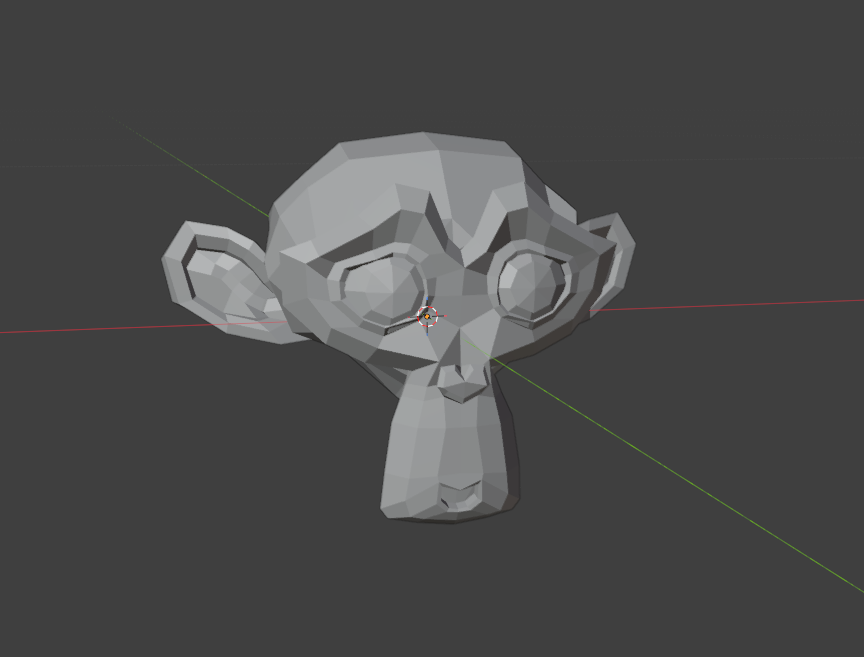
Start with your beautiful mesh. I’ve added Blender’s Suzanne mascot:
-
The first thing we’re going to do is create a cutting mesh. This will determine the shape of the guide plug and shape of the cutting surface.
First, create a mesh for the plug. Press Shift+A to add a mesh. I’ve chosen a cylinder, but you can use whatever mesh you want. A box-shaped plug will prevent the two halves from rotating and might be a better choice.
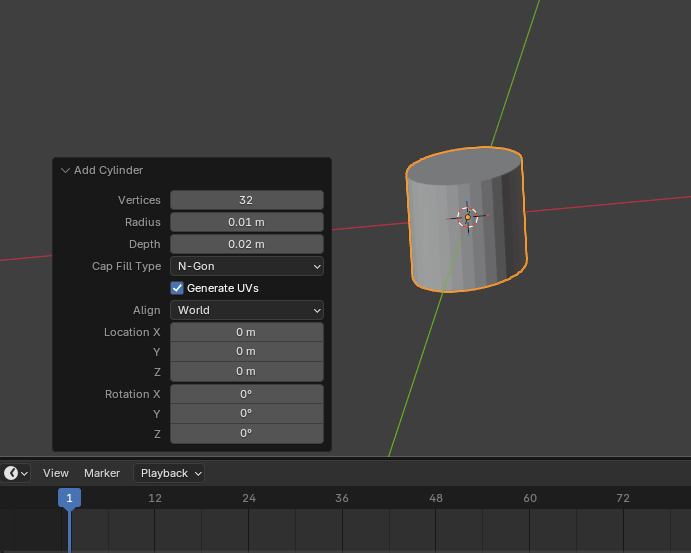
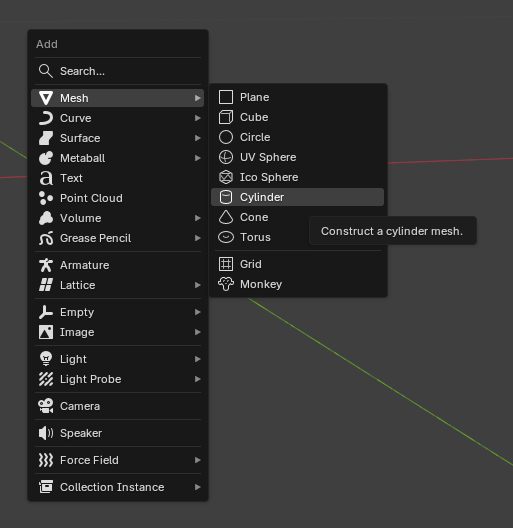 You can expand the menu in the bottom left to input the exact dimensions of the mesh:
-
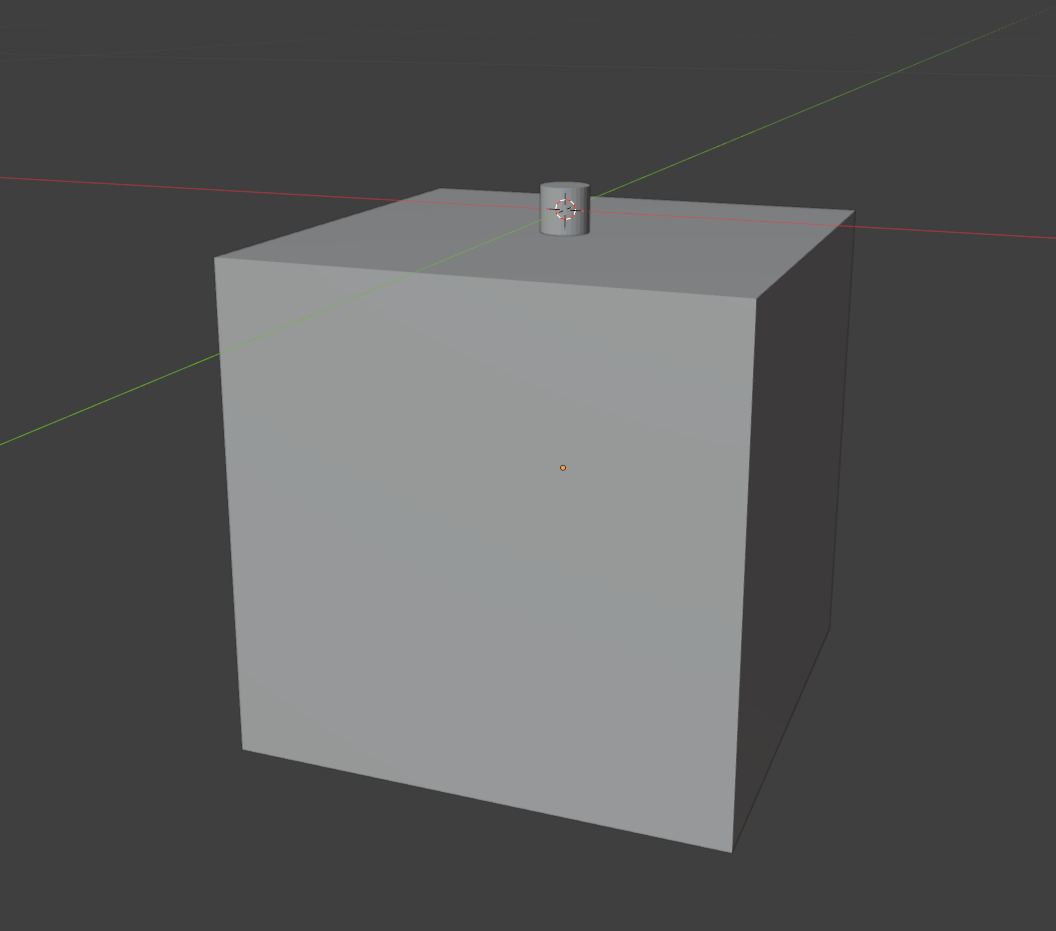
Use the same process to add a cube that is large enough to encompass the portion of the mesh you’re cutting out. Use G+Z to grab the mesh and move it along the Z axis until it’s just barely overlapping the bottom of your plug mesh. Left-click to confirm your placement. Pressing Numpad 1 will put Blender into a front-view that may make positioning easier:
-
We’re now going to take the union of the plug+cube to make a single cutting mesh. To do this, select the cube, open the modifiers panel on the right (wrench icon), and search for a modifier:
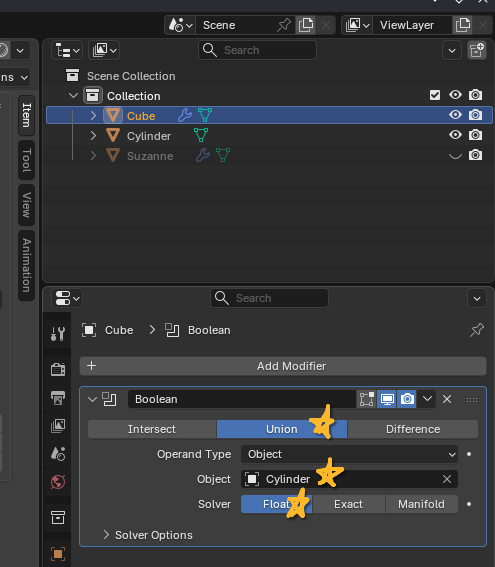
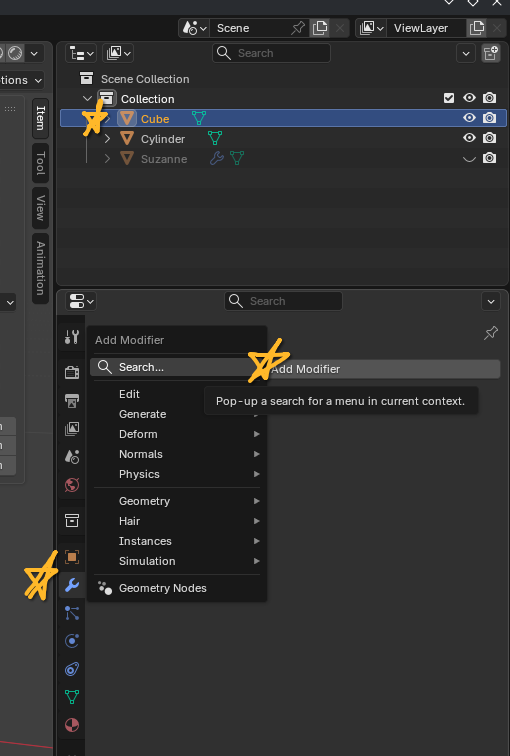 Search for a “Boolean” modifier. Change the modifier settings to “Union”, choose the plug mesh as the object target, and set the method to “float”:
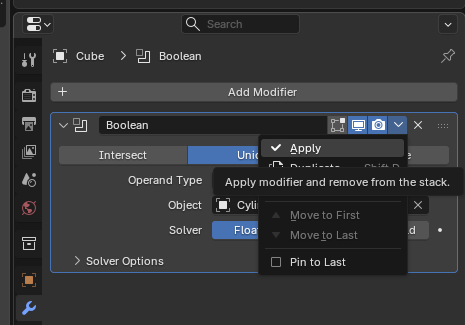
 The modifier is currently editable and will react to the component meshes moving. We want them to be permanently attached. Finalize the modifier by clicking “Apply”.
-
You now have a cutting mesh named “Cube”. You can now delete the plug mesh - we won’t need it anymore.
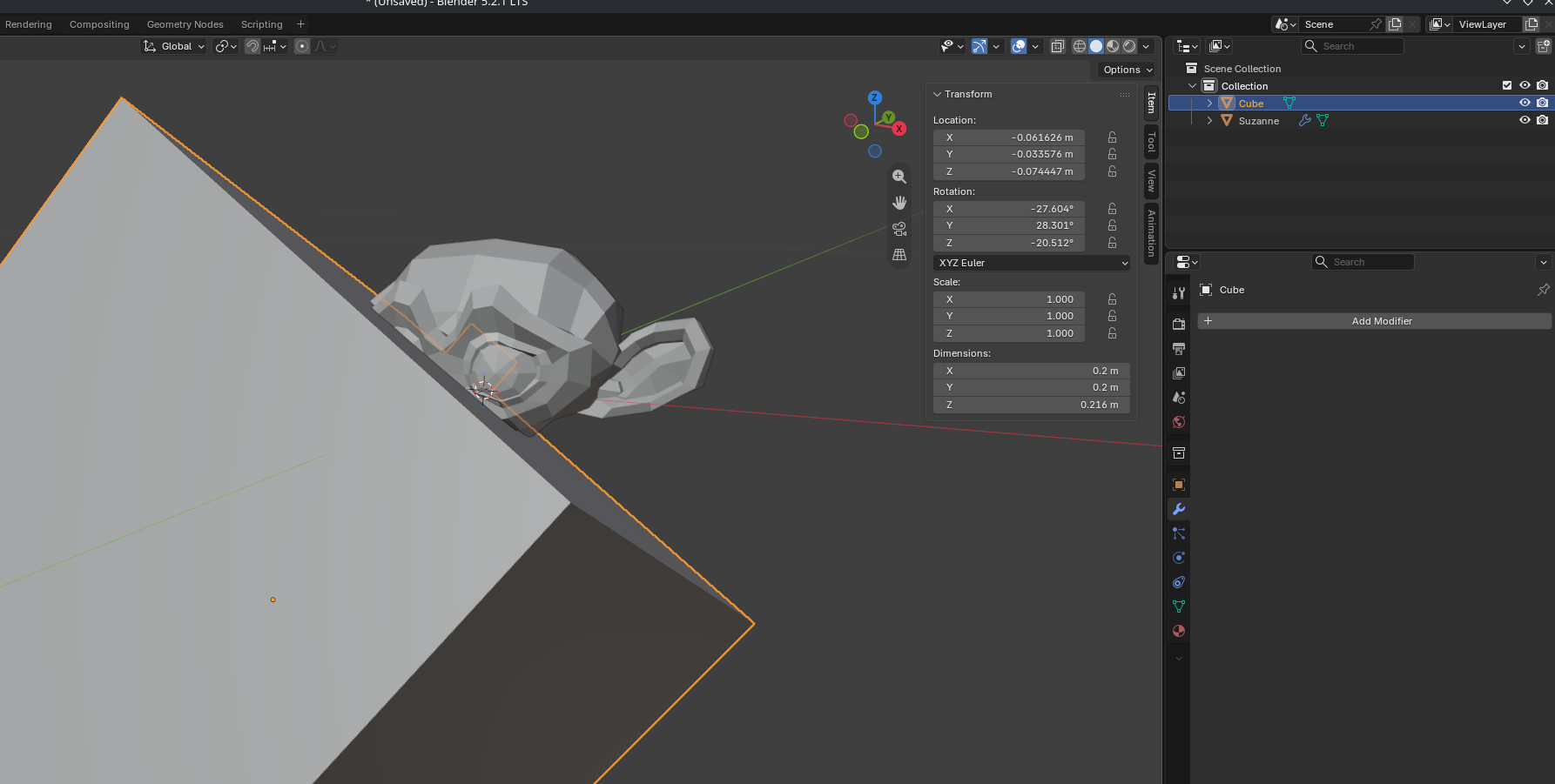
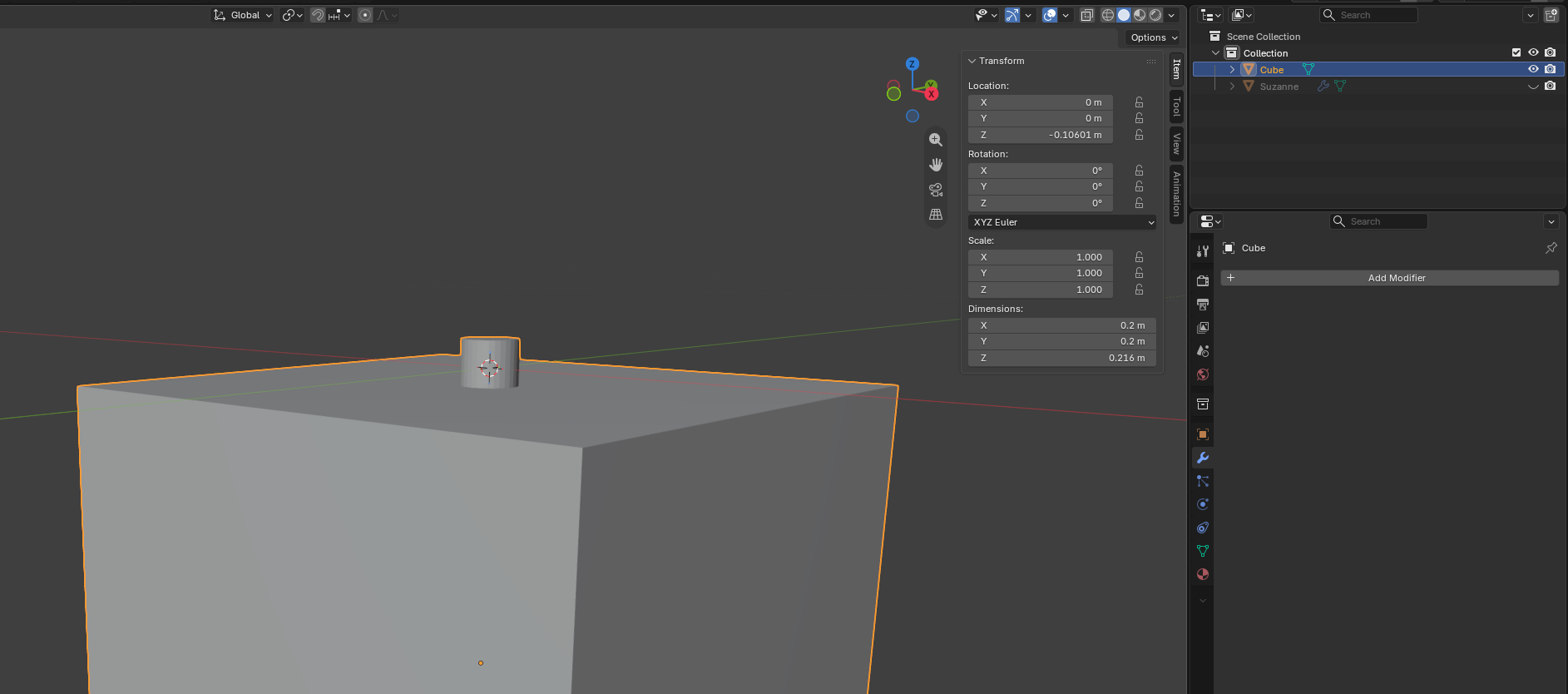 Go ahead and position your cutting mesh in the mesh you’re trying to split. You can use G to grab the mesh and R to rotate it. You can also press N to open the properties panel in the top right and input exact values for position/rotation.
-
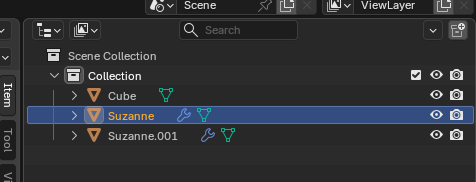
Make a copy of the mesh you’re trying to split in the top right panel. You can just select it and press Control+C and Control+V.
-
Select one of the copies of your mesh and add a Boolean modifier to it like you did before. This time, set the modifier to “Intersect” and select your cutter mesh as the object target:
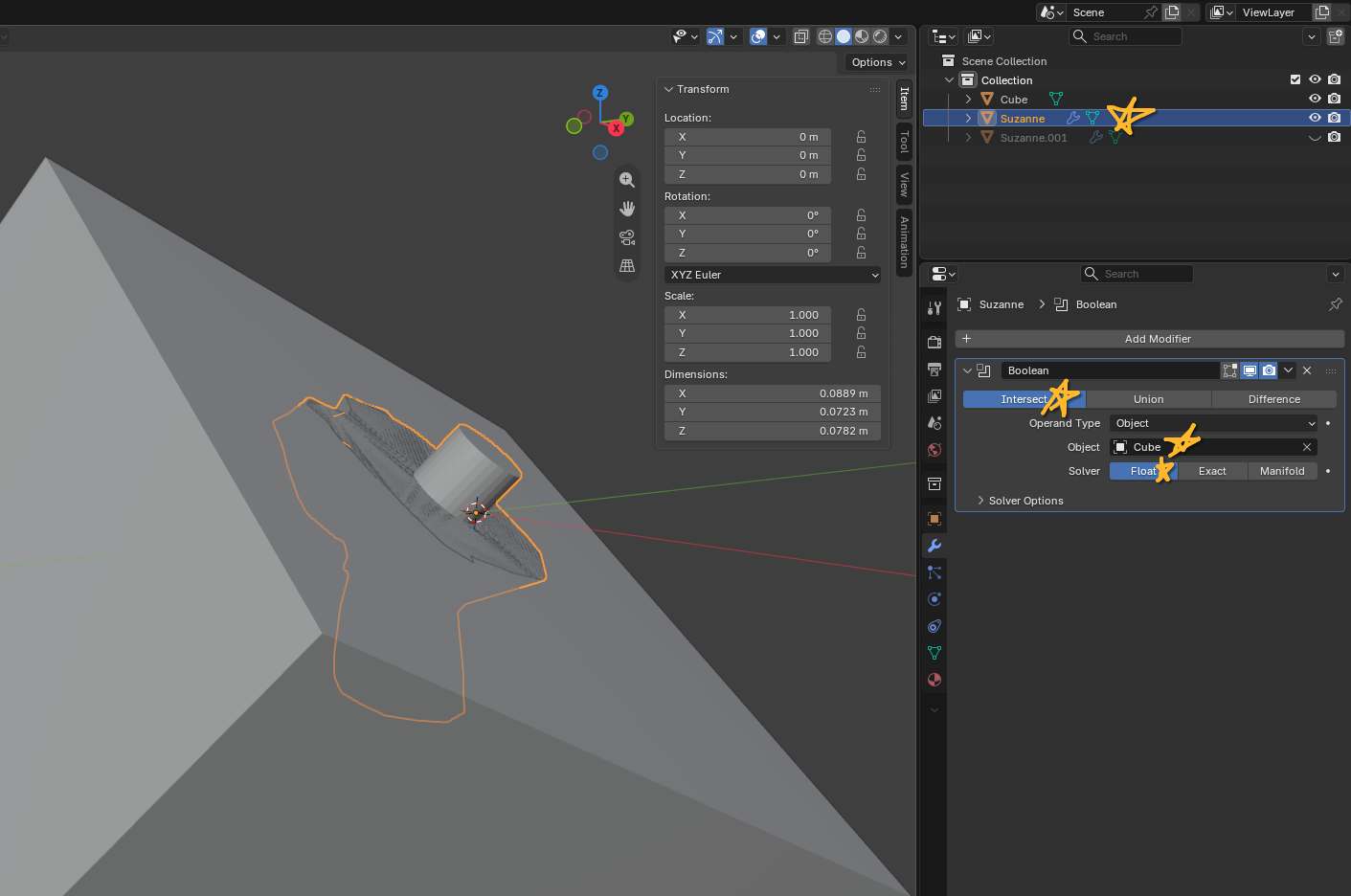 Go ahead and apply the modifier. Note that you can’t undo this action. Make sure you have a clean copy of your object file somewhere in case this goes horribly wrong.
 -
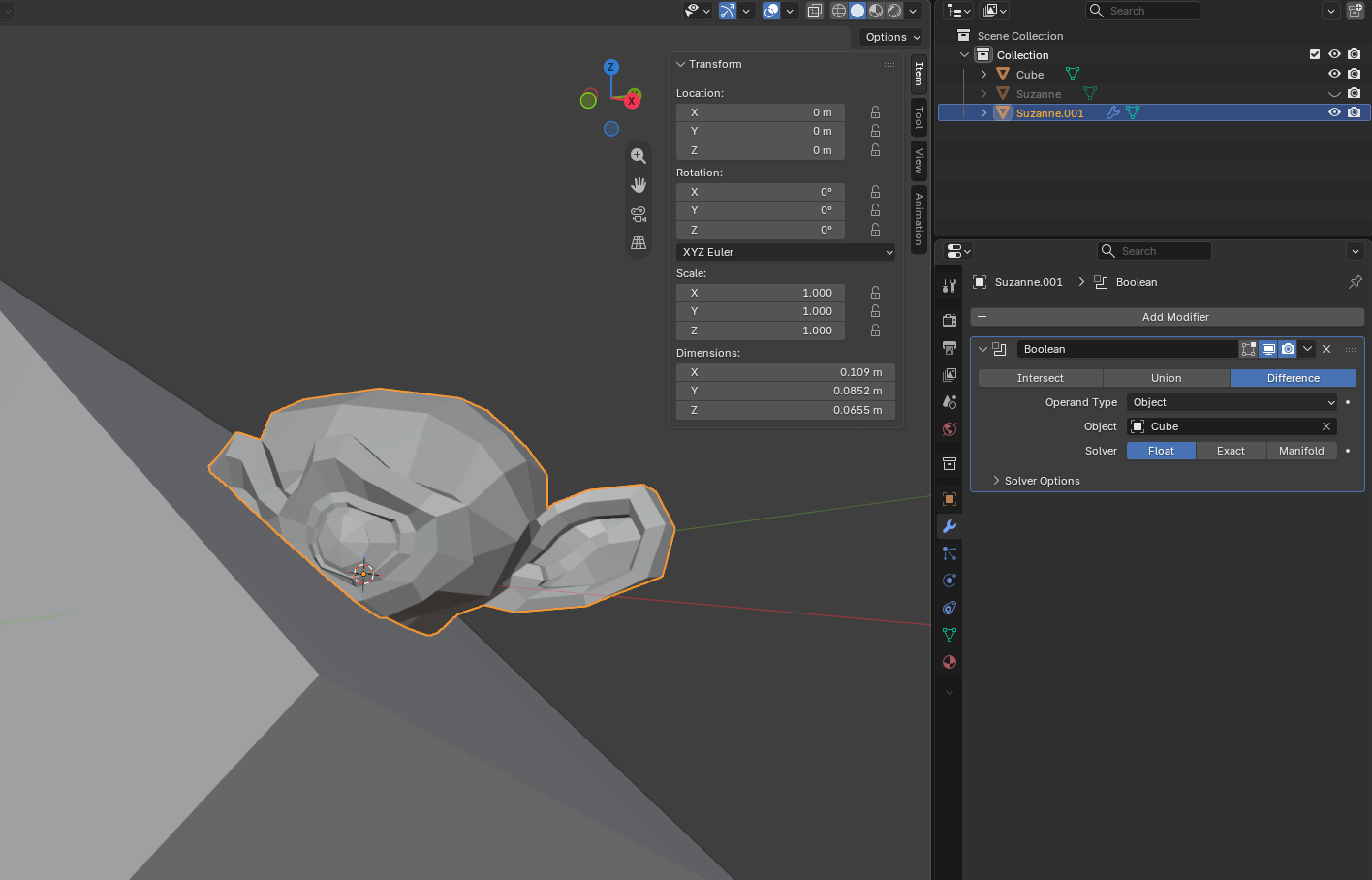
Select the other copy of your mesh and do the same thing, except setting the modifier to “Difference” this time.
-
Congratulations! You’ve now cut your mesh apart:
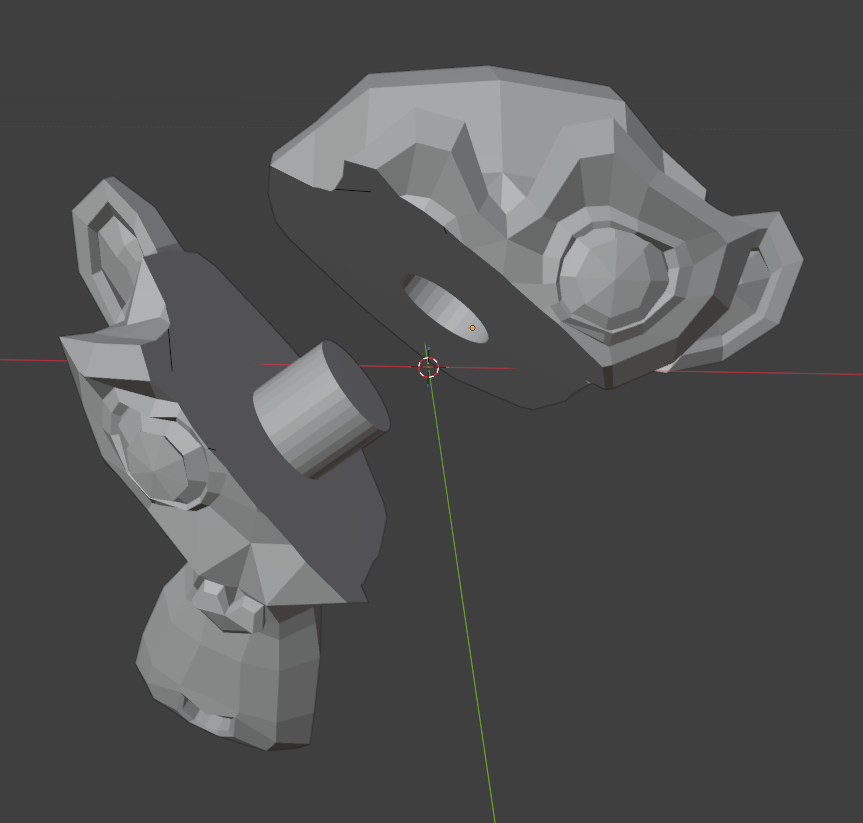 You can now select+export+print these separately. I’ve rotated them a bit for clarity, but you don’t need to do that.